
Appearance
The dashboard
▶ Watch — a quick walkthrough of the dashboard
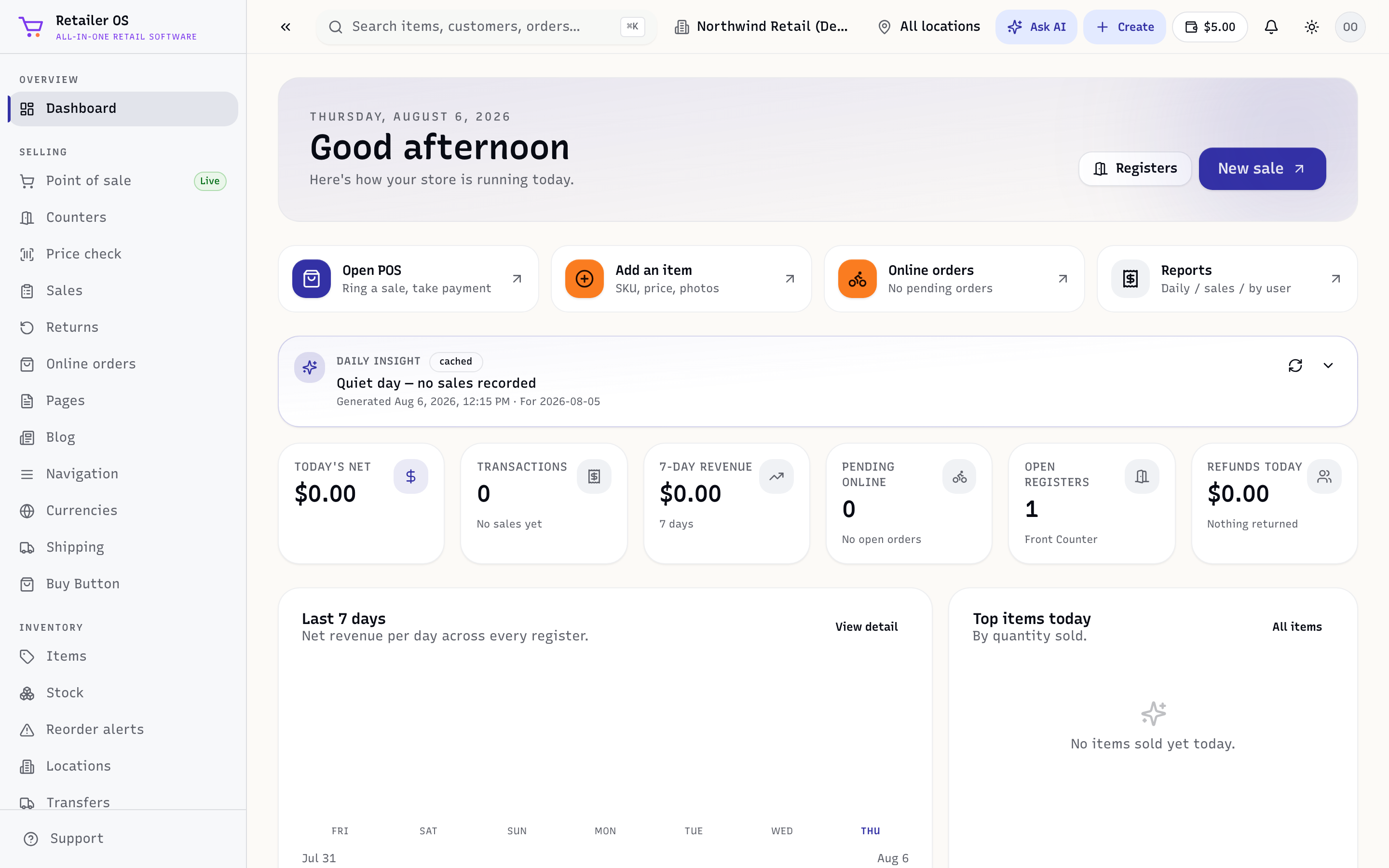
The dashboard (the Dashboard item at the top of the sidebar, or the home / route) is what you land on after signing in. It's a live snapshot of the store you have selected in the location switcher.
What's on it
- Today's sales — revenue, transaction count, and average basket for the selected location, updating as you sell.
- Alerts — low-stock and reorder alerts, pending online orders, and any setup tasks you haven't finished.
- Shortcuts — quick links into Point of Sale, Items, Customers, and Reports.
Switching locations
Use the location switcher in the top bar to change which shop or warehouse the dashboard (and the rest of the app) reports on. Numbers everywhere follow the selected location.
The top bar
Every screen shares the same top bar:
- Global search and the Command palette (
Cmd/Ctrl-K) — jump to any item, customer, order, or screen. See Global search & shortcuts. - + Create — a quick menu to add an Item, POS sale, Customer, Vendor, or Purchase order from anywhere.
- Ask AI — ask questions about your store in plain English (needs an AI plan). See Ask AI.
- Notifications, theme toggle, and your account menu (Profile, Settings, Sign out).
TIP
Managers have a focused screen of their own: Manager view, under Reports & admin, shows today's numbers and everything waiting on a manager. See Manager view & corp roll-ups.