
Appearance
Returns & refunds
▶ Watch — a quick walkthrough of returns & refunds
Process a return from the Returns screen (or from a past sale). Returns restock inventory and refund the customer to the tender you choose.
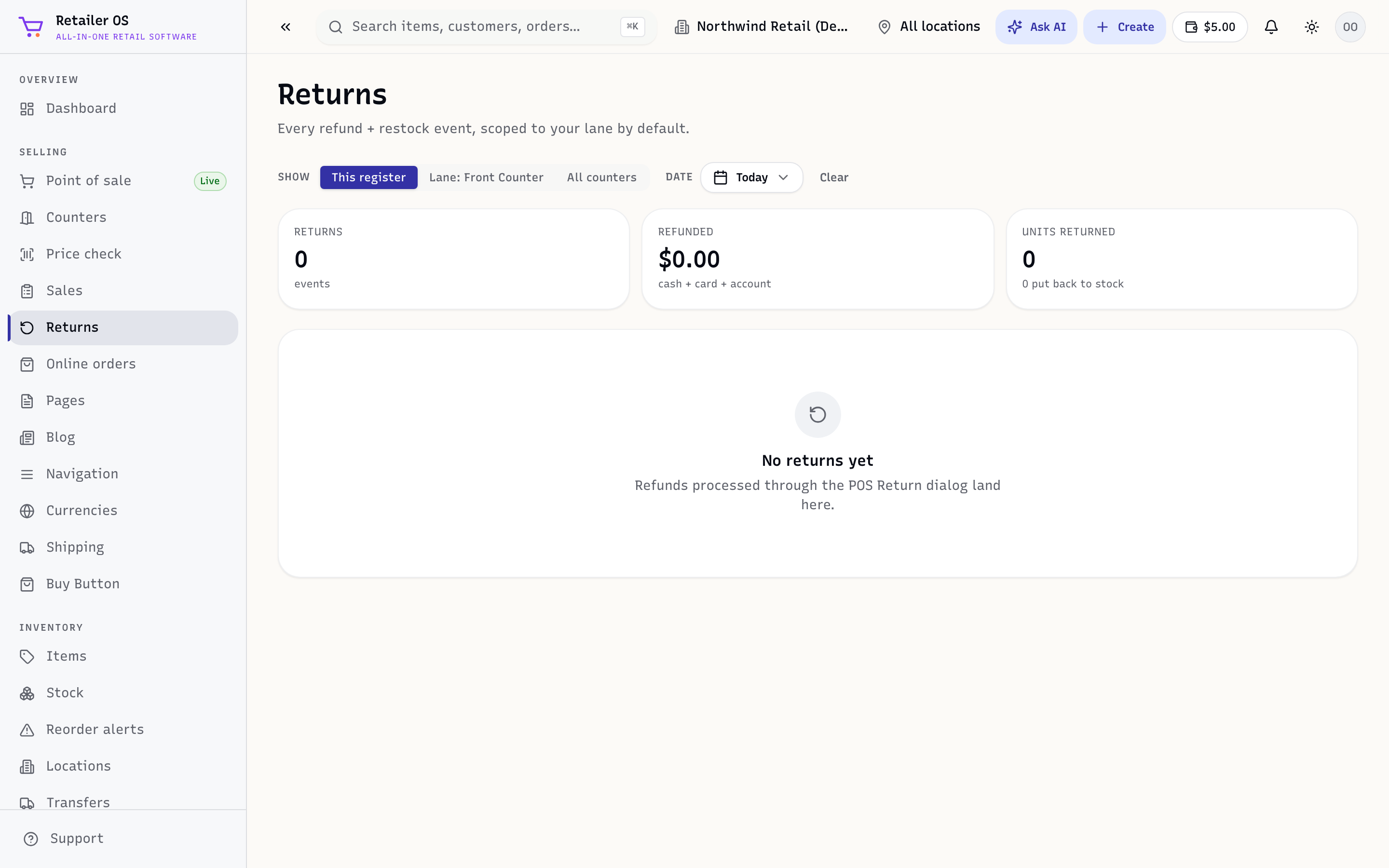
Start a return
- Open Returns, or find the original order in Sales & Orders and choose Return.
- Look up the sale by receipt number, customer, or card, or start a receipt-less return if your policy allows it.
- Select the items and quantities coming back.
Choose the refund
- Pick the refund method — back to the original card, cash, gift card, or store credit.
- Decide whether each item is restocked (returned to sellable inventory) or not (e.g. damaged goods).
- Confirm. The refund is issued and stock is adjusted at the current location.
What gets recorded
- The return links to the original sale and appears in Sales & Orders and the audit log.
- Refunds show in the payment mix and returns figures in Reports.
- If a customer was attached, their history and loyalty are adjusted.
WARNING
Refunds to the original card move real money. Role permissions control who can process returns and receipt-less returns — set these under Team & roles.